Staff Desk
Version 1.0.1. The listing, or pick it up in the shop and run it.
Staff Desk
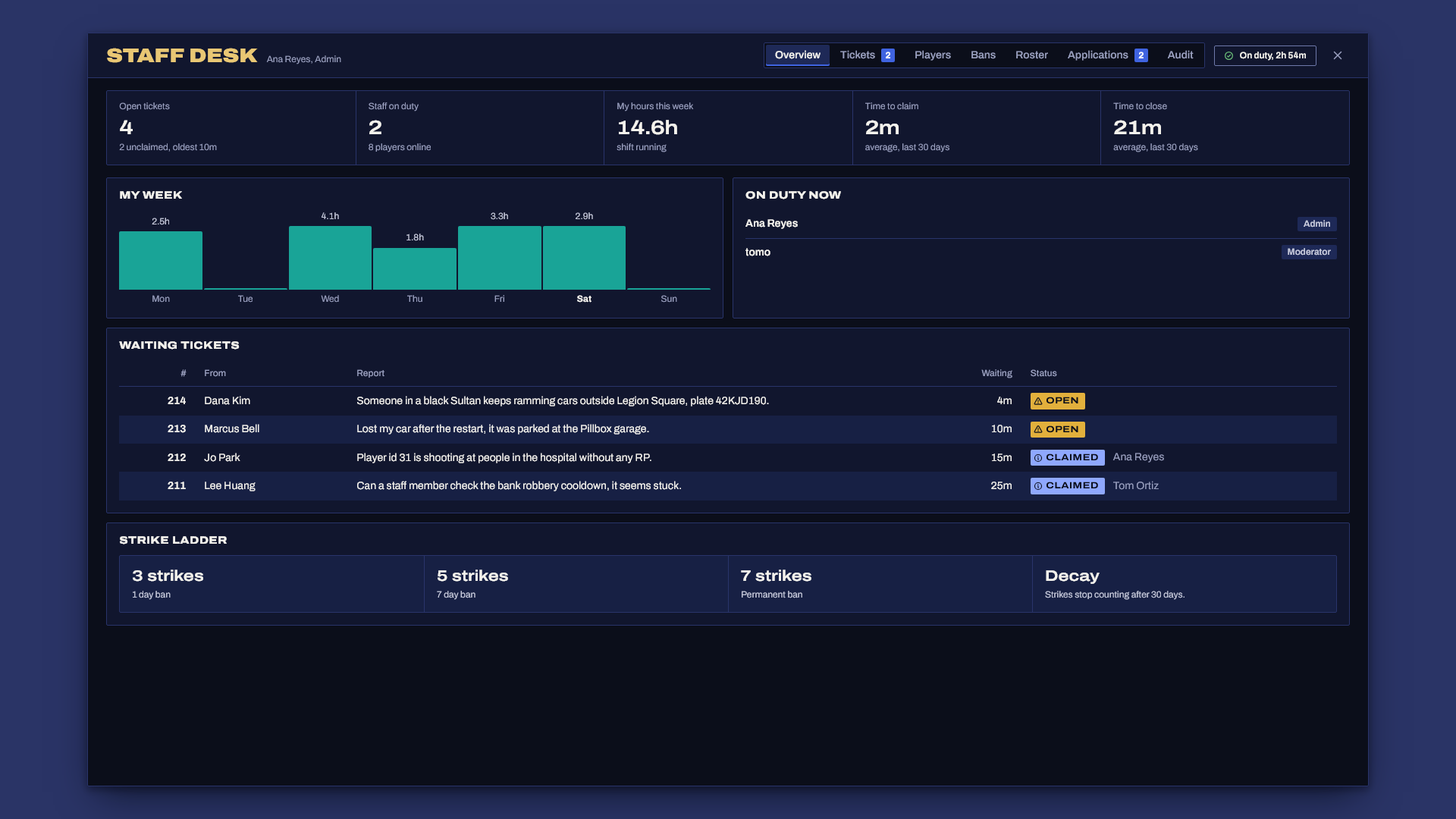
Staff Desk puts the whole staff office in one in-game screen: who is on duty and for how long, the report queue, warnings, strikes, bans, whitelist applications and an audit log of every action. Every roleplay server ends up running its staff team out of Discord threads, a spreadsheet of bans and memory. Reports get lost, nobody knows who works, and a moderator can ban the admin who hired them, which is asinine.
It runs with no framework at all. If ESX, Qbox or QBCore is running, it also shows character names and jobs.
What you get
- Staff roster with ranks you define. Each rank is an ACE permission, with its own list of what it may do. Ranks are checked on the server for every action, so removing someone's ACE removes their access on the spot.
- Shift clock. Staff clock on and off with
/dutyor the desk. Every shift is logged, hours are totalled per week (split correctly across midnight and the week boundary), and anyone who disconnects is clocked off automatically. - Player reports. Any player types
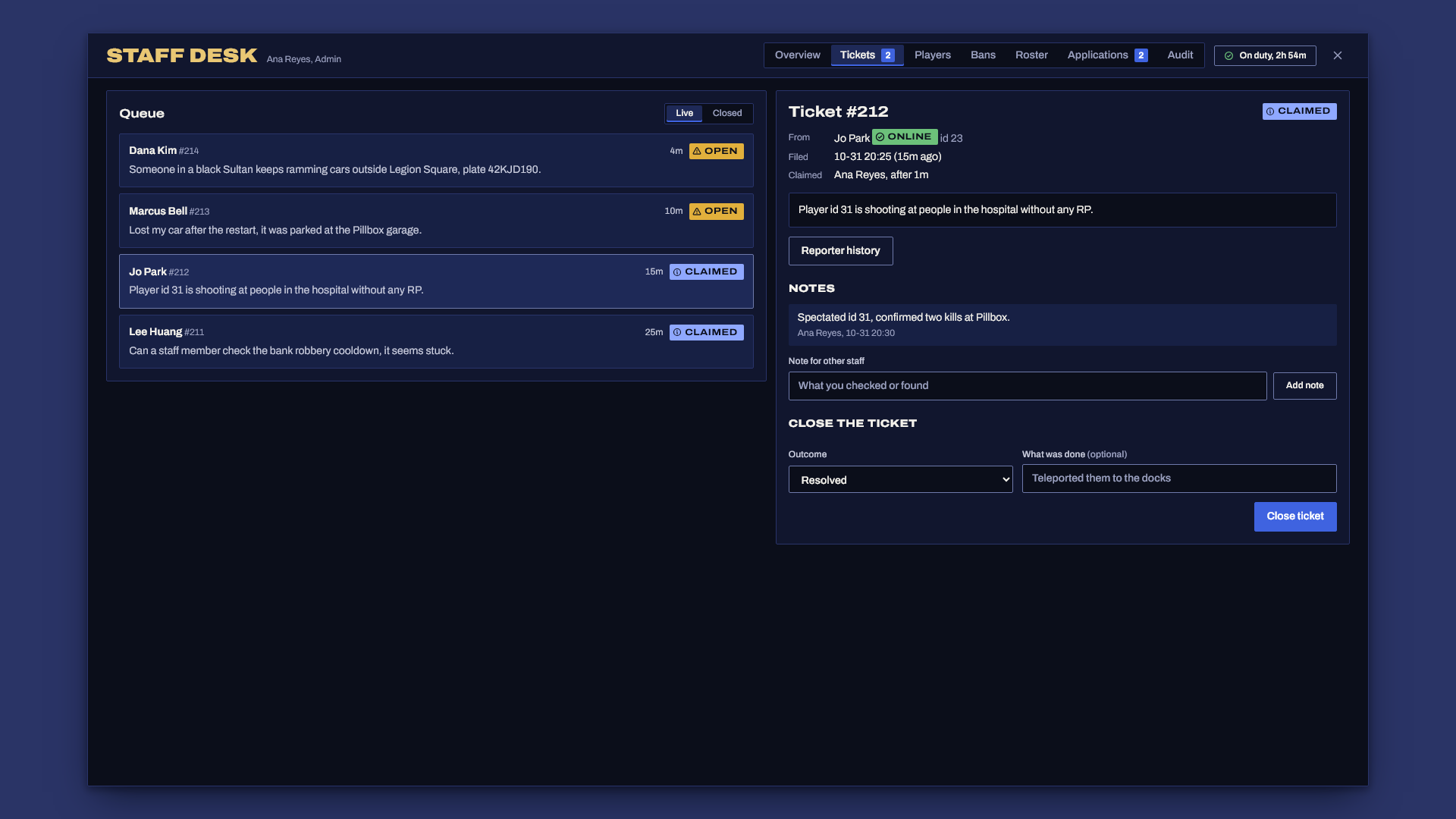
/report what happened. On-duty staff get a notification, the ticket goes into the queue, and staff claim it, add notes and close it with an outcome. The player hears when their report is picked up and when it's closed. Tickets survive restarts. - Response times. Time to claim and time to close, per staff member and overall, over the last 30 days.
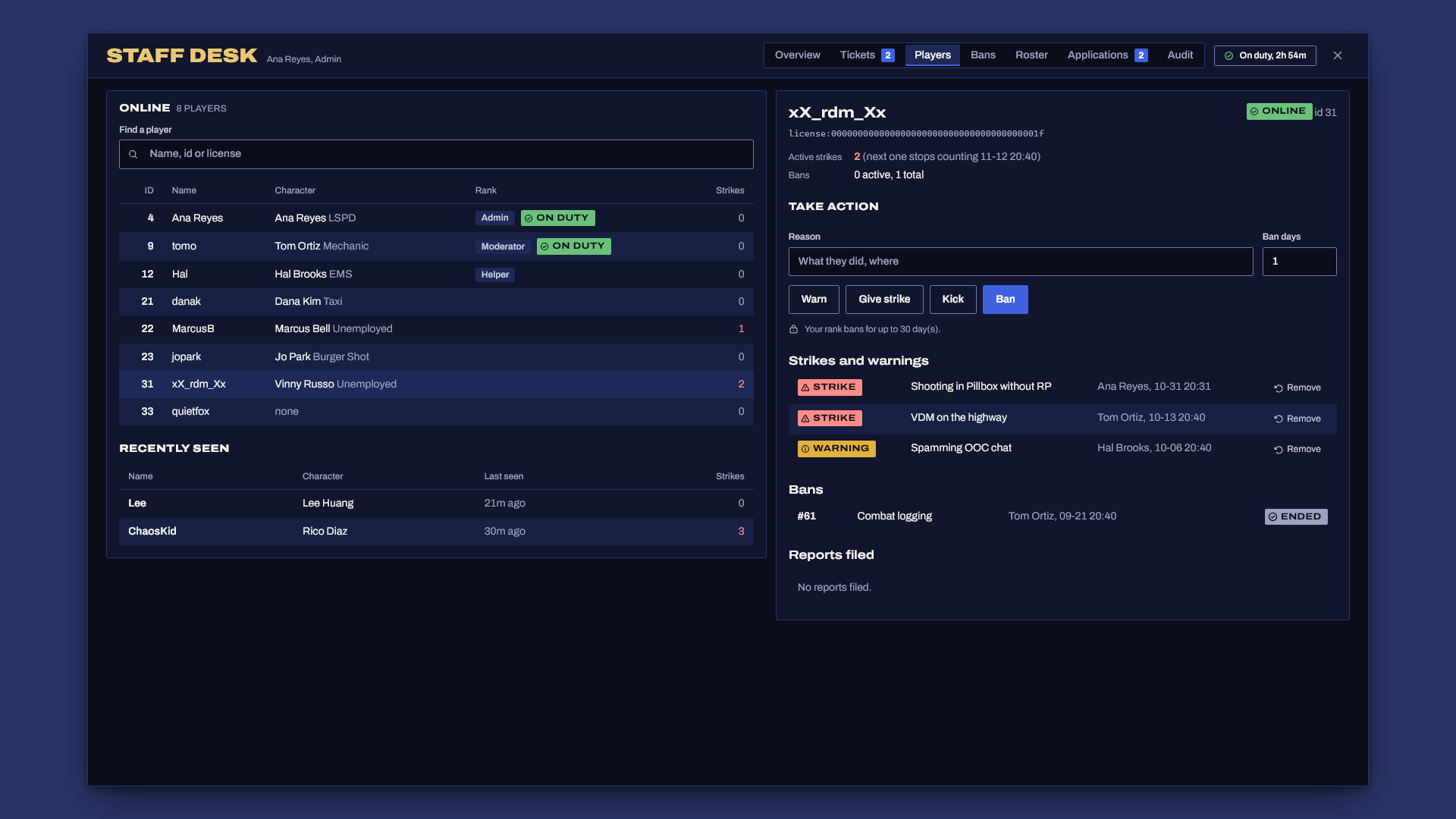
- Warnings, strikes and bans. Warnings are logged but don't count. Strikes count toward a ladder you set (3 strikes is a 1 day ban, 5 is 7 days, 7 is permanent by default) and stop counting after a number of days. Bans are checked when a player connects, and they see the reason, the end date and how to appeal.
- Rank rules that stick. Staff can only act on players below their own rank. A ban or strike can only be lifted by someone of the same rank as the person who gave it, or higher.
- Whitelist applications (off by default). Your questions, filled in from
/apply. Staff accept or deny from the desk. Accepting adds the player to an ACE group, and you can refuse connections from anyone without an accepted application. - Audit log of every staff action, with an optional Discord webhook.
- Works standalone. Everything is keyed on the player's Rockstar license. ESX Legacy, Qbox and QBCore only add character names and jobs.
Requirements
- oxmysql
- Any framework or none. ESX Legacy, Qbox and QBCore are detected on their own.
Install
- Unzip so that
resources/staff_desk/fxmanifest.luaexists (notresources/staff_desk-v1.0.0/staff_desk/..., which Windows "Extract All" creates). - Add
ensure staff_desktoserver.cfg, afterensure oxmysql. Start order for your framework doesn't matter: Staff Desk waits up to 15 seconds for one that is installed and prints what it found. - Give your staff their ranks with ACE (next section).
- Start the server. The tables create themselves.
- Staff open the desk with
/staffdesk.
Ranks and ACE
Each rank in config.lua has an ACE permission. Grant it to a group, then put people in the group by license:
# Ranks: one ACE per group
add_ace group.helper    staffdesk.helper    allow
add_ace group.moderator staffdesk.moderator allow
add_ace group.admin     staffdesk.admin     allow
add_ace group.owner     staffdesk.owner     allow

# People: their Rockstar license (shown on the Players tab of the desk)
add_principal identifier.license:1a2b3c4d5e6f7a8b9c0d1e2f3a4b5c6d7e8f9a0b group.owner
add_principal identifier.license:0f9e8d7c6b5a4f3e2d1c0b9a8f7e6d5c4b3a2f1e group.moderator
A player with several ranks gets the highest one. Higher ranks can do everything lower ranks can do.
Watch out for add_ace group.admin staffdesk allow (without a rank after the dot). ACE permissions are a tree, so that line grants every rank, owner included.
What each rank can do is set in config.lua:
moderator = {
    label = 'Moderator', level = 2, ace = 'staffdesk.moderator',
    can = { 'strike', 'kick', 'ban' },   -- plus everything helper can do
    banDays = 3,                         -- longest ban this rank can give
},
| Action | What it allows |
|---|---|
duty |
Clock on and off |
tickets |
See the queue, claim, add notes, close their own tickets |
tickets_override |
Close or take over a ticket someone else claimed |
warn |
Give a warning |
strike |
Give a strike |
kick |
Kick an online player |
ban |
Ban for up to banDays days |
permaban |
Ban with no end date |
unban |
Lift a ban given by the same rank or lower |
pardon |
Remove a strike or warning given by the same rank or lower |
applications |
Review whitelist applications and whitelist a license by hand |
roster |
See every staff member's hours and ticket times |
audit |
Read the audit log |
Commands
| Command | Who | What |
|---|---|---|
/report <text> |
Everyone | File a report. Limited to 3 per 5 minutes and 2 open at a time, both set in config |
/staffdesk |
Staff | Open the desk |
/duty |
Staff | Clock on or off |
/apply |
Everyone | Open the whitelist application, when applications are on |
staffdesk_unban <ban id or license> |
Server console | Lift a ban, for when the only owner banned themselves |
Command names are set in Config.Commands.
Strikes and bans
Config.Strikes = {
    decayDays = 30,                 -- strikes stop counting after 30 days, 0 keeps them
    ladder = {
        { at = 3, days = 1 },       -- reaching 3 active strikes bans for 1 day
        { at = 5, days = 7 },
        { at = 7, days = 0 },       -- 0 is permanent
    },
}
Strikes and bans can target an online player or anyone seen on the server before, so a player who logs off right after an RDM can still be dealt with from the Players tab.
A banned player who tries to connect sees the reason, the end date and time, how long is left, the ban ID and the appeal text from Config.Bans.appeal. Times use Config.UtcOffsetHours, which also sets when the week starts for shift totals.
Whitelist applications
Off by default. To turn them on:
Set
Config.Applications.enabled = trueand write your questions.Accepting an application adds the player's license to
Config.Applications.grantGroup(group.whitelistedby default). For that, Staff Desk needs permission to runadd_principal:add_ace resource.staff_desk command.add_principal allowAccepted players are added again on every start, so this survives restarts.
Config.Applications.requireToConnect = truerefuses connections from anyone without an accepted application. Staff who have been seen with a rank always get in. Players can't apply in game while this is on, so either take applications before you turn it on or whitelist licenses by hand from the Applications tab.
Other scripts can check exports.staff_desk:IsWhitelisted(license).
Discord webhook
Every staff action, new report and new application can be posted to a Discord channel. Put the webhook URL in server.cfg:
set staff_desk_webhook "https://discord.com/api/webhooks/..."
Use set, never setr. A setr value is sent to every player, and anyone with the URL can post to your channel. Posts are queued and sent one at a time, and when Discord asks to slow down, the queue waits as long as Discord says.
Exports
exports.staff_desk:IsOnDuty(source)              -- true while that player is clocked on
exports.staff_desk:GetRank(source)               -- 'moderator', 'Moderator', 2 (or nil)
exports.staff_desk:GetOnDutyStaff()              -- { source, source, ... }
exports.staff_desk:GetActiveBan('license:...')   -- { id, reason, expires } or nil (expires 0 is permanent)
exports.staff_desk:IsWhitelisted('license:...')  -- true once an application is accepted
exports.staff_desk:AddBan(source, 'license:...', 'reason', days)   -- true, ban id (days 0 is permanent)
AddBan lets another script ban through Staff Desk, so your server keeps one ban list. Pass a server id, a license or both. The ban shows in the Bans tab and the audit log with the calling resource as the issuer, and an online player gets dropped straight away. Call it from a thread or event handler, since it waits on the database. Event Guard uses it when you set Config.Bans.export = { resource = 'staff_desk', name = 'AddBan' }.
On-duty staff also carry the state bag Player(source).state.staffOnDuty = true, readable from client scripts.
Escrow
The core is encrypted with Cfx asset escrow. These stay open so you can adapt them: config.lua, server/bridge.lua (the optional framework code) and sql/install.sql.
Troubleshooting
Couldn't find resource staff_desk: the folder is nested. Openresources/and check thatstaff_desk/fxmanifest.luasits directly inside it. Windows "Extract All" adds an extra folder named after the zip.- "You don't have access to that." The player has no rank ACE. Check the
add_aceandadd_principallines, and that the license matches (the desk's Players tab shows it). Runtest_ace identifier.license:... staffdesk.adminin the server console to see what the server thinks. - A staff member gets owner powers they shouldn't have: look for
add_ace ... staffdesk allowwithout a rank. That grants every rank. - Database setup failed in the console: oxmysql isn't connected, or your database user can't create tables. Fix the connection or run
sql/install.sqlby hand. - Accepted applicants don't get the ACE group: add
add_ace resource.staff_desk command.add_principal allowtoserver.cfg. - The webhook posts nothing: the console prints a warning when
staff_desk_webhookis set but isn't a Discord webhook URL. Check it starts withhttps://discord.com/api/webhooks/. - No character names on the desk: they only show when ESX, Qbox or QBCore is running and the player has loaded a character. Standalone servers show the player's FiveM name.
Support
Open a ticket in the Discord with your framework (or none), your oxmysql version and the server console output from startup.